Apple’s AI Assistant for Pages, Keynote, and Numbers: What Changes for Work?
Apple is bringing a document-aware AI assistant to Pages, Keynote, and Numbers. Announced on October 27, 2026 as part of Apple Creator Studio, the beta assistants can help reshape written content, refine slides, and work with spreadsheet data. Apple’s broader suite update is scheduled for November.
The useful change is the starting point: the assistant works with the file in front of you. A request to shorten a section or suggest a chart can refer to the content you have already prepared, rather than a new description in a separate chat.
For people preparing a report or presentation, that brings AI closer to everyday work. Here is how the three apps divide the job—and how to turn the research behind a presentation into a clear decision before polishing the slides.
What does Apple’s Intelligent Assistant do?
The assistant understands the context of the document being edited. Apple says the productivity assistants are built on Apple models and OpenAI technology; the announcement does not identify a specific OpenAI model.
The useful distinction is not simply that each app now has a chat interface. It is that the requests can relate to the material you are already working on.
| App | Capabilities described by Apple | A practical request to try |
|---|---|---|
| Pages | Draft, restructure, and fine-tune written content | Reorganize this project update so the recommendation comes before the supporting detail. |
| Keynote | Help design, animate, and refine slides | Simplify this slide so the audience sees one main point, then refine how that point is presented. |
| Numbers | Calculate, organize, and visualize data; suggest chart types with a preview; build custom tables | Suggest a chart that makes the change over time easier to see, and explain which data it uses. |
The open document, presentation, or spreadsheet gives the assistant something concrete to work with. You can start with a targeted change rather than a description of the entire project.
For a team preparing a review meeting, the three apps address different parts of the same job. Pages can help shape the written argument, Numbers can help present the evidence, and Keynote can help communicate the story. A polished slide still depends on the underlying argument and numbers being sound.
When is the update available, and what does it require?
Apple says the Creator Studio updates will arrive on the App Store in November 2026, with no additional update charge for existing subscribers. The intelligent assistants are beta features for Apple Creator Studio subscribers; the free versions of Pages, Keynote, and Numbers will continue to be available.
For the assistants, Apple lists an Apple Intelligence-capable device running iOS 27, iPadOS 27, or macOS 27 or later. MCP support in the three apps requires macOS 27 or later. Before subscribing for a particular feature, check its current requirements and whether it appears in your app; a subscription alone does not establish that every announced feature is ready to use.
The announcement follows October 22 reports of Intelligent Assistant features in mobile-app update notes. Those earlier notes and the November suite schedule describe different stages of the rollout. For a feature you plan to use, check the latest app version and current requirements rather than assuming every device received it at the same time.
MCP and .keyx: two different ways to open up the workflow
MCP provides a way for external AI agents and tools to interact with Pages, Keynote, and Numbers. Apple says that interaction can include reading content, making edits, and running automated actions directly in the apps. That matters when a workflow needs more than a conversational answer: the tool needs a route to the document itself.
Keynote Interchange Format, .keyx, addresses a different need. It is an open, JSON-based bundle format designed to be readable by external tools, developer workflows, and AI agents. MCP is a connection mechanism; .keyx is a document format. Neither announcement, by itself, tells you that a particular third-party product has implemented support.
For everyday work, the practical question is specific: which tool can use which document, what can it change, and what will you review before accepting those changes? The protocol and file format make new workflows possible, but the actual integration still matters.
The work before the slides: decide what the evidence should say
An in-app assistant is a helpful starting point when the document already exists. Many briefings begin earlier, with a project update in one file, research notes in another, and supporting numbers in a spreadsheet.
Imagine that a team needs to decide whether to expand a product pilot. You have approved project updates, user feedback, a performance table, and notes on the next phase. Asking for “an eight-slide deck” sets a length, but it does not explain the decision. A stronger instruction is: help the leadership team decide whether to expand the pilot, and show which evidence supports the recommendation.
Prepare the materials with that question in mind:
- Include the latest approved versions and identify the reporting period.
- State the audience, decision, and available presentation time.
- Identify the metrics that matter, including their definitions and denominators.
- Keep gaps and conflicting figures visible rather than resolving them by guesswork.
An eight-slide outline can then follow the decision instead of the order of the source files:
| Slide | What it should establish |
|---|---|
| 1. Decision | What the audience needs to decide. |
| 2. Recommendation | The proposed direction and the main reason. |
| 3. Current position | What has happened in the pilot so far. |
| 4. Evidence | The findings that support the recommendation, with sources. |
| 5. Alternatives | Other reasonable choices and their trade-offs. |
| 6. Uncertainty | Missing or conflicting information that could change the decision. |
| 7. Next phase | Proposed scope, responsibilities, and review points. |
| 8. Next steps | Decisions needed now and the follow-up work. |
In this suggested structure, every slide has a job. Before refining a chart or animation, you can see whether the presentation actually helps someone decide.
Build that research presentation with MuseWork
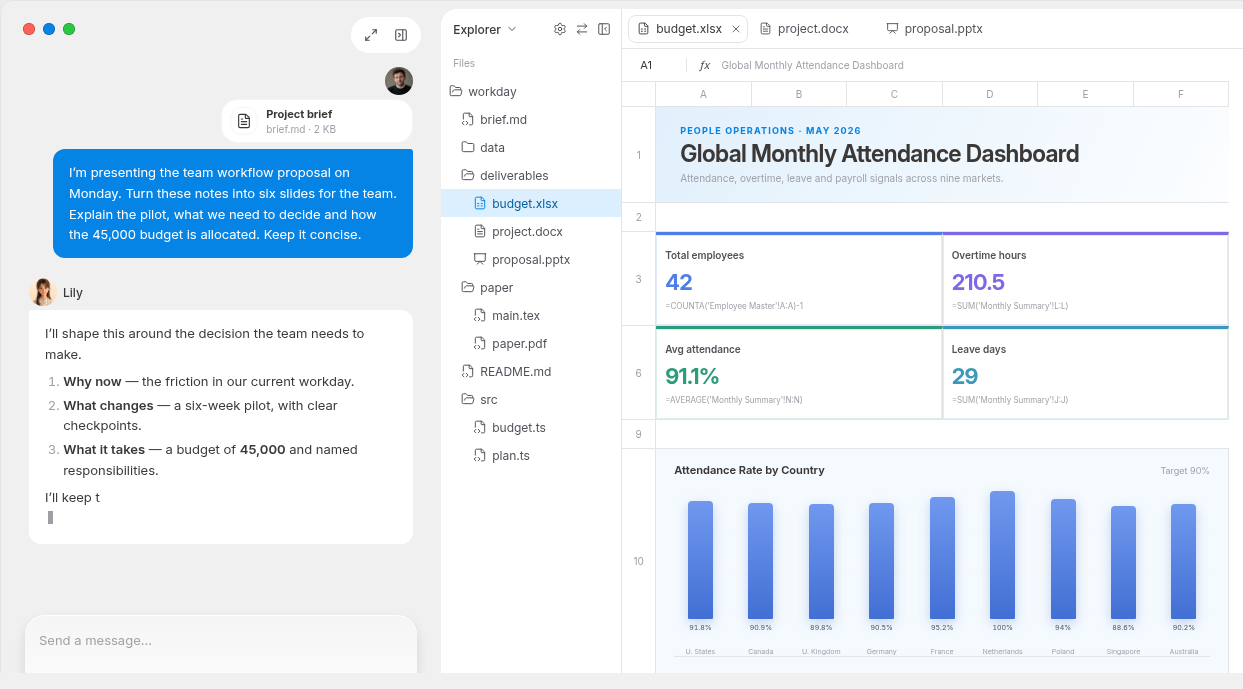
That is where a file-level change becomes part of a larger task. For a pilot review, the question is not just whether a slide looks better, but whether the audience can follow the recommendation back to the research. MuseWork lets you bring those materials and the decision together in an editable presentation draft.
For the pilot example, try this request:
Use my approved project updates, research notes, user feedback, and data tables to create an eight-slide executive briefing about whether to expand this pilot. The audience is [audience], and the decision is [decision]. Lead with the recommendation, connect each important claim or number to its source, and separate evidence from interpretation. Flag conflicting figures and missing information instead of inventing an answer. End with decisions, owners to confirm, and next steps. Include a source list for review.
You can start a research briefing in MuseWork, copy the request, and add your own materials after signing in. To explore the workflow first, see how research becomes a presentation.
Once you have a draft, review the key numbers against the source tables and check whether the recommendation follows from the evidence. Ask for targeted revisions: shorten the background, make the alternative clearer, or move an unresolved assumption beside the recommendation it affects. That is more useful than repeatedly asking for a “better deck” without saying what should change.
If the approved materials are already in a project folder on your computer, MuseWork Desktop lets you work with local files within the access you authorize and save the result to the location you choose. You can keep the task connected to the materials you already use and choose where the result belongs.
References
FAQ
Are Pages, Keynote, and Numbers becoming paid-only apps?
No. Apple says their free versions will continue. The intelligent assistants are beta capabilities for Creator Studio subscribers, rather than a requirement for basic document, spreadsheet, or presentation use.
Is this the same thing as Siri?
The announcement describes assistants inside the productivity apps that understand document context. Treat those app-specific capabilities separately from Siri features and check the requirements for the function you want to use.
What should I review before sharing an AI-assisted briefing?
Check the decision, the sources behind important claims, the reporting period and definitions of key metrics, and any unresolved assumptions. Then check the presentation’s readability and whether each slide earns its place.