ChatGPT Images 2.6: GIF Updates and MuseWork's Integration Plans
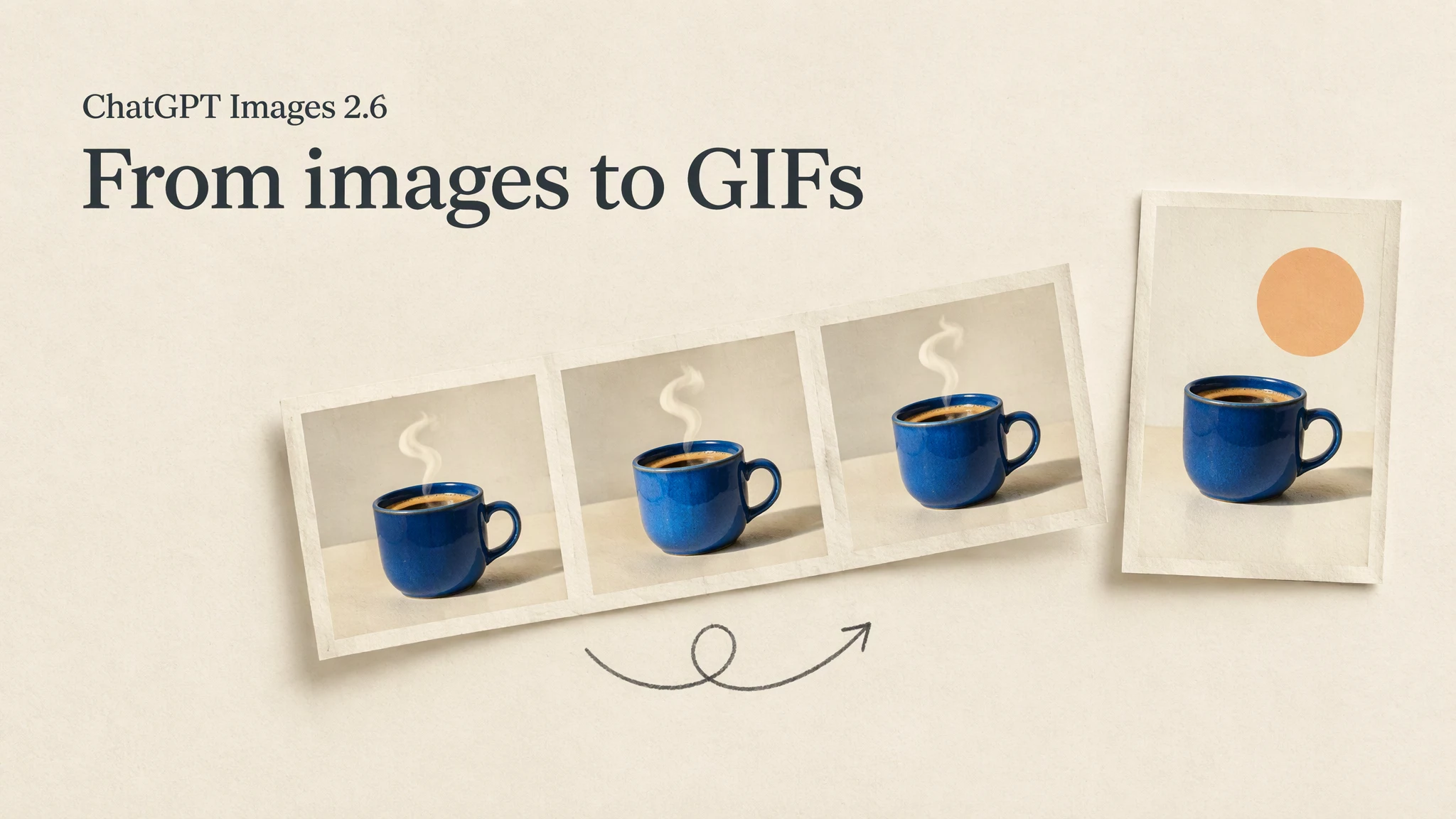
ChatGPT's Images 2.6 update adds animated GIF creation from a text prompt or an uploaded image. You can adjust the animation speed and edit individual frames. For a marketing team, that opens up a simple use case: give a product photo or original character a small, repeating movement instead of producing a whole video.
OpenAI announced Images 2.6 on November 4, 2026. The update also brings changes to image editing and reference reuse. The useful question is not just whether an image can move, but what that movement should communicate.
MuseWork will soon integrate Images 2.6. As we prepare for the integration, this guide explains what has changed in ChatGPT and how to plan the visual assets your campaign needs. The MuseWork example below uses our current still-image workflow, not the upcoming model.
What is new in Images 2.6?
The GIF feature lets you start with an idea or a photo, then refine the loop. A character could wave, or steam could rise from a cup. Speed adjustments change the rhythm; individual-frame editing gives you a way to address a moment that looks wrong.
The release also introduces reusable reference images in ChatGPT. OpenAI's system card describes improved consistency across edits and better preservation of details. These changes matter when you want to refine a background or composition without losing the subject you started with.
How to start a GIF request in ChatGPT
Start with one clear action. If you use a reference photo, say what should stay still as well as what should move. A product spinning, a camera moving, and a changing background are three different requests; combining them makes the result harder to judge.
For example:
Make an animated GIF from this coffee-cup photo. Keep the cup, its printed design, and the camera position unchanged. Animate only a gentle curl of steam. Use a calm, repeating movement with no flashing or added words.
Review the first result before adding more detail. If it feels too fast, adjust the speed. If the cup or printed design changes in a particular frame, refine that frame and check the whole loop again. Watch the join between the end and the beginning: a sequence can look good frame by frame yet jump when it repeats.
Use this as a starting brief, not a promise that every detail will be preserved. Check the finished file in the channel where you plan to use it.
A campaign often needs a still image as well
Imagine you are promoting a new coffee blend. A subtle steam loop might suit a social post, while a website banner or presentation cover needs a still image with room for the headline. These are related assets, but they have different jobs.
Before generating either, decide what the audience should notice first: the product, the offer, or the mood. Keep the product photo, palette, and composition references together so the still image and the loop start from the same direction.
A practical sequence is to approve the visual composition first, then decide whether motion adds anything. If the offer needs careful reading, a still image may be clearer than a loop. If the purpose is to show a small gesture or atmosphere, a GIF may be useful.
Build the still campaign visual with MuseWork
For the still-image part of that campaign, MuseWork can turn a description and visual references into a generated image, then help refine the direction. Share your product photo and brand references, name the audience and channel, and specify the aspect ratio before asking for the first version.
Try a request like this:
Create a 16:9 still campaign image for a new coffee blend, using my product photo and palette reference. Keep the product recognizable and leave clear space on the left for a headline I will add later. Use warm morning light and a simple background. Do not add logos, pricing, or promotional claims. After the first version, help me refine the background without changing the direction I like.
The example above uses MuseWork's current still-image workflow; the GIF instructions in this article are for ChatGPT.
Explore image creation with references
Create a still campaign visual
What to check before sharing
- Product and brand details: look at the shape, packaging, lettering, and colors—not just the overall mood.
- The loop: watch for a jump, flicker, or unwanted change across frames.
- The actual placement: check readability, crop, file size, and playback where the asset will appear.
- Permission: use photos and brand materials you are entitled to share and edit.
References
FAQ
Is this the same as creating a video?
No. This feature creates repeating GIF animations. Do not assume it provides a video editor, audio, or the controls of a full video-production workflow.
Should every campaign image become a GIF?
No. Motion should serve the message. A product gesture may benefit from a loop; a detailed offer or presentation cover may work better as a still image.
Can I use the same references for a GIF and a still image?
Yes, a shared product photo and visual direction can help you plan related assets. Review each output separately: the still image needs the right composition, while the GIF also needs consistent details and a smooth loop.