Gemini Computer Use on Mac: What It Does and How to Get Started
Gemini can now do more than explain how to complete a task on your Mac. With computer use, the Gemini Mac app can click, type, navigate menus and fill in forms across local files, desktop apps and websites. Google announced the update on November 19, 2026.
The practical change is the handoff between tools. Instead of asking an assistant to extract information and then moving it into another app yourself, you can describe the larger job. Gemini works through the steps in a separate background window, with a live preview in the conversation.
For everyday work, the useful question is not just whether AI can click a button. It is whether you can give it a well-defined assignment and get back a result you can check.
What changed in the Gemini Mac app?
Google describes computer use as a way to complete multi-step tasks across files, apps and the web. Its examples include extracting weights, dimensions and addresses from local PDFs to fill shipping quote forms, preparing presentations from live dashboards, batch color-grading photos, and staging resale listings from clothing photos.
These examples share a pattern: information begins in one place, action happens in another, and several steps connect them. Reading a PDF is one part of the job; entering its contents into the right fields is another. Computer use adds that second kind of work.
This is an update to the Gemini Mac app, rather than the announcement of a new model. It is also different from simply sharing a window for an AI to read. Seeing what is on screen and being allowed to act on it are separate capabilities.
Does Gemini take over your screen?
Google says Gemini runs inside an isolated background window. Your main screen and cursor remain available for your own work, while the chat shows a live preview of the task.
You choose which apps Gemini may access, can pause the work, and approve key actions before they happen. A background window makes the activity easier to follow without occupying your foreground workspace; it is not a reason to skip checking what the agent is doing.
For a first task, keep the scope small. Use a copy of a non-sensitive document, choose the necessary apps, and ask for a draft rather than an external submission. You can expand the assignment after you have seen how the workflow behaves.
What do you need before trying it?
Google's announcement lists an Apple Silicon Mac running macOS Sequoia 15.0 or later, an adult personal Google account, and a Google AI Plus, Pro or Ultra subscription. Computer use is being rolled out, so having the desktop app installed does not by itself establish that your account can use the feature. Check the app's current eligibility and availability information before subscribing specifically for it.
Google's Mac help page explains how to install the app and check for updates. After installation, the menu path Gemini → Check for Updates lets you check whether a newer version is available. Follow the current in-app computer-use setup and permissions prompts rather than assuming that general chat or window-sharing access also enables app control.
Give it a job with a clear finish line
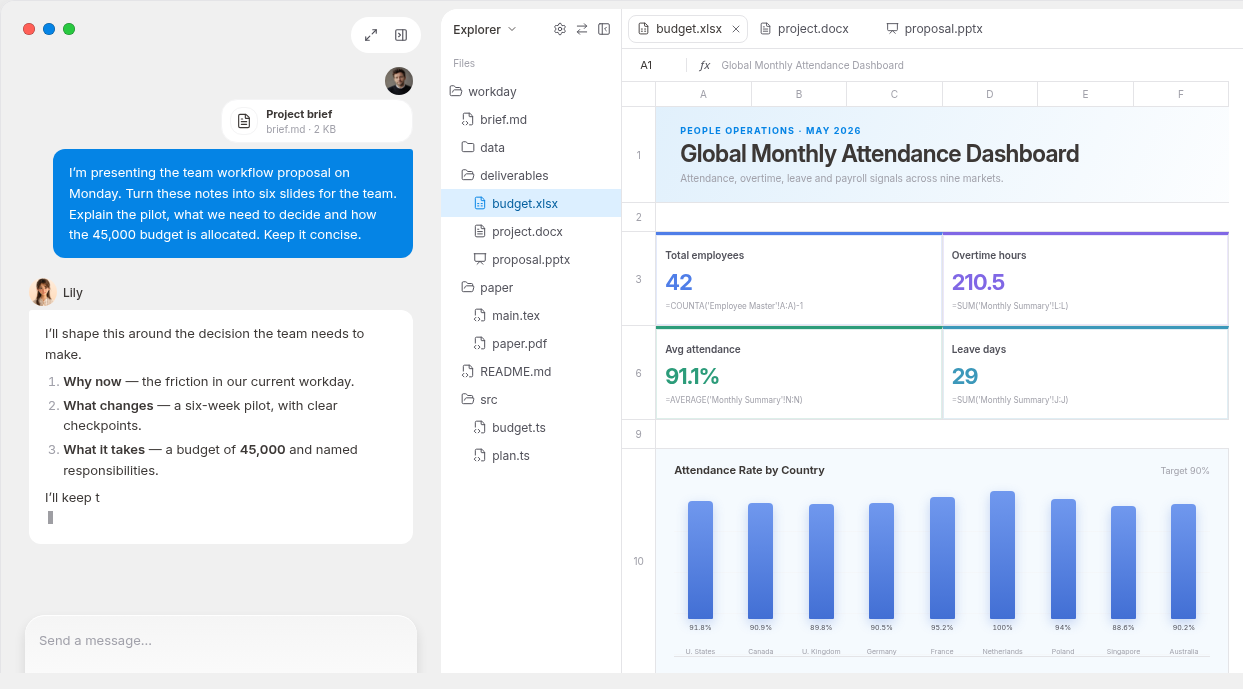
Consider a project update for a team lead. The inputs might be a project plan, recent meeting notes and a few specified public reference pages. The outcome is a one-page brief: what moved forward, what is blocked, and what needs a decision.
That is a better starting point than “look through my computer and tell me what's important.” The assignment names the materials, the audience and the output. It also gives you something concrete to review.
A useful request could be:
Use the project plan and meeting notes I authorize, together with these specified public pages. Draft a one-page project update for the team lead. Include milestones, blockers and three questions that need a decision, with the source for each point. Preserve the original files. Stop before logging in, submitting a form, deleting a file or sending anything externally.
Use this request for a small first trial, and ask Gemini to flag any step it cannot complete with the available apps. Then check the brief against the latest plan: are dates current, are blockers supported by the notes, and did the assistant distinguish a proposal from an agreed decision?
If two sources disagree, ask it to show the disagreement instead of choosing silently. Once the evidence is sound, you can decide whether the brief should become a presentation or stay as a document.
Bring the materials and the result together in MuseWork
That same project-update job is where a dedicated work workspace helps. In MuseWork, you can provide the approved materials, describe the brief you need and refine the result in the conversation. MuseWork Desktop can work with local folders and browser tasks within the access you authorize, keeping the source files, conversation and deliverable together.
Start on the web when uploading the relevant materials is enough. Choose the desktop client when the task needs files or browser work on your computer, and keep it running while those local resources are needed. MuseWork is a separate product; the workflow here uses its own capabilities, not Gemini's computer-use feature.
Create a project update brief in MuseWork. After signing in, copy the request above and add your materials. For local files and browser tasks on your computer, download MuseWork Desktop.
References
FAQ
Is Gemini computer use the same as reading a shared window?
No. Window sharing provides visual context. Computer use lets Gemini carry out actions such as clicking, typing and navigating supported workflows with permission.
Is computer use free with the Gemini Mac app?
The announcement names Google AI Plus, Pro and Ultra subscriptions for computer use. Downloading the app and being eligible for this feature are different things; verify the current terms shown for your account.
Can I use it on an Intel Mac?
Google's announcement specifies Apple Silicon for this feature, along with macOS Sequoia 15.0 or later.
What should I check before using the result?
Check the source, the date, any calculations and the destination of proposed actions. For the project brief above, confirm that milestones and decisions match the approved materials before sharing it.