'/%3e%3cdefs%3e%3clinearGradient%20id='paint0_linear_6609_68599'%20x1='3.18225'%20y1='15.6908'%20x2='32.433'%20y2='20.6207'%20gradientUnits='userSpaceOnUse'%3e%3cstop%20stop-color='%230048ED'/%3e%3cstop%20offset='1'%20stop-color='%230DECD7'/%3e%3c/linearGradient%3e%3c/defs%3e%3c/svg%3e)
'/%3e%3cdefs%3e%3clinearGradient%20id='paint0_linear_6609_68609'%20x1='3.18219'%20y1='15.6908'%20x2='32.4329'%20y2='20.6207'%20gradientUnits='userSpaceOnUse'%3e%3cstop%20stop-color='%236896FF'/%3e%3cstop%20offset='1'%20stop-color='%230DECD7'/%3e%3c/linearGradient%3e%3c/defs%3e%3c/svg%3e)


Use GPT-6 and switch AI models in MuseWork
Choose a model for each step of your work in MuseWork. Use Auto or select GPT-6 Astra, Claude Opus 5.5, DeepSeek V4.1 Flash, and more. New users can explore Advanced models for 30 days from signup.
Choose a model before you start—or as your work changes
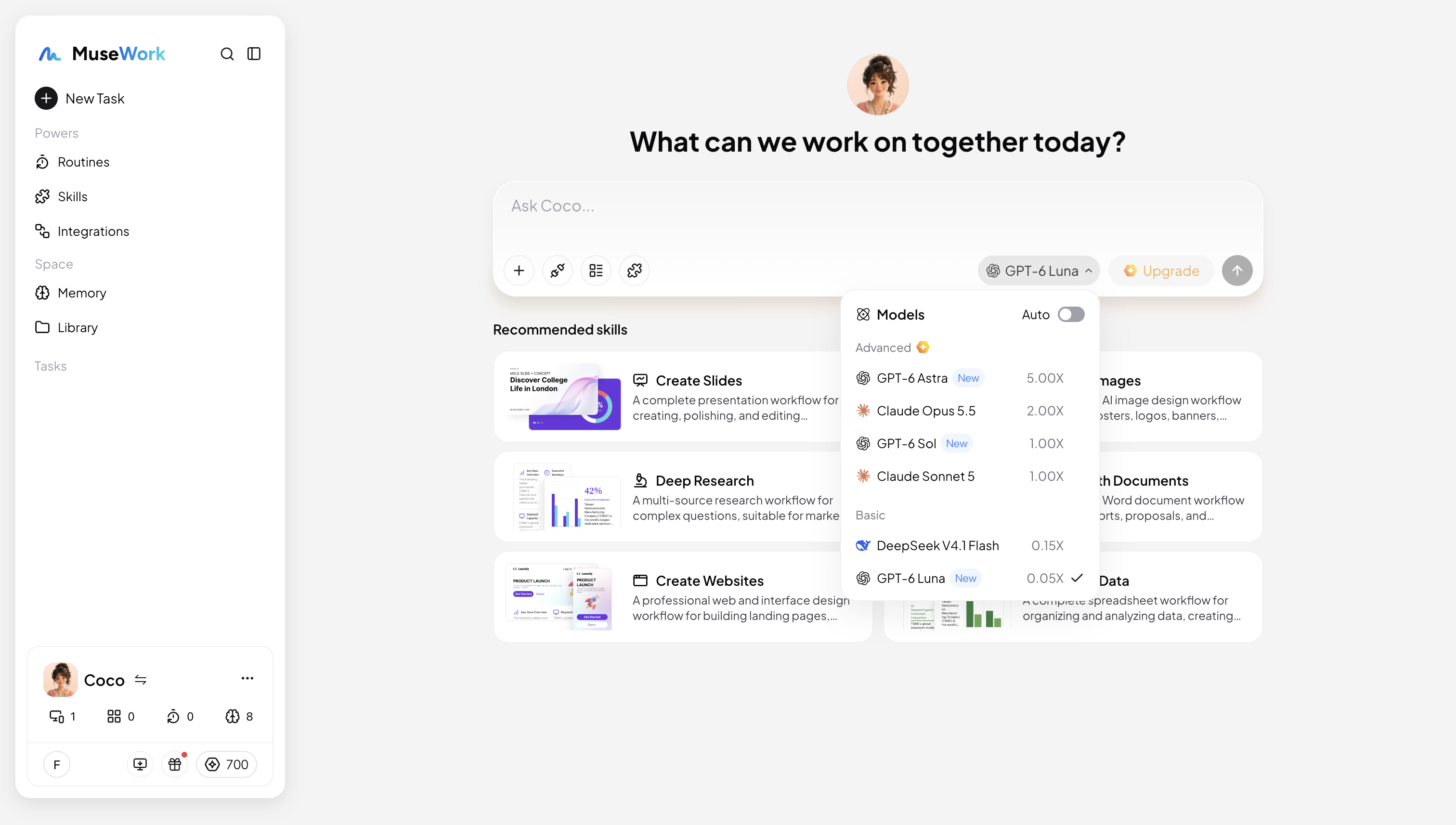
The model picker is now beside the send button. Leave it on Auto and MuseWork will choose a model for the task, or open the menu and select one yourself before sending your message. Your selection stays in place for that chat session. If the next step needs a different model, you can switch without starting a new conversation.
See what you're choosing
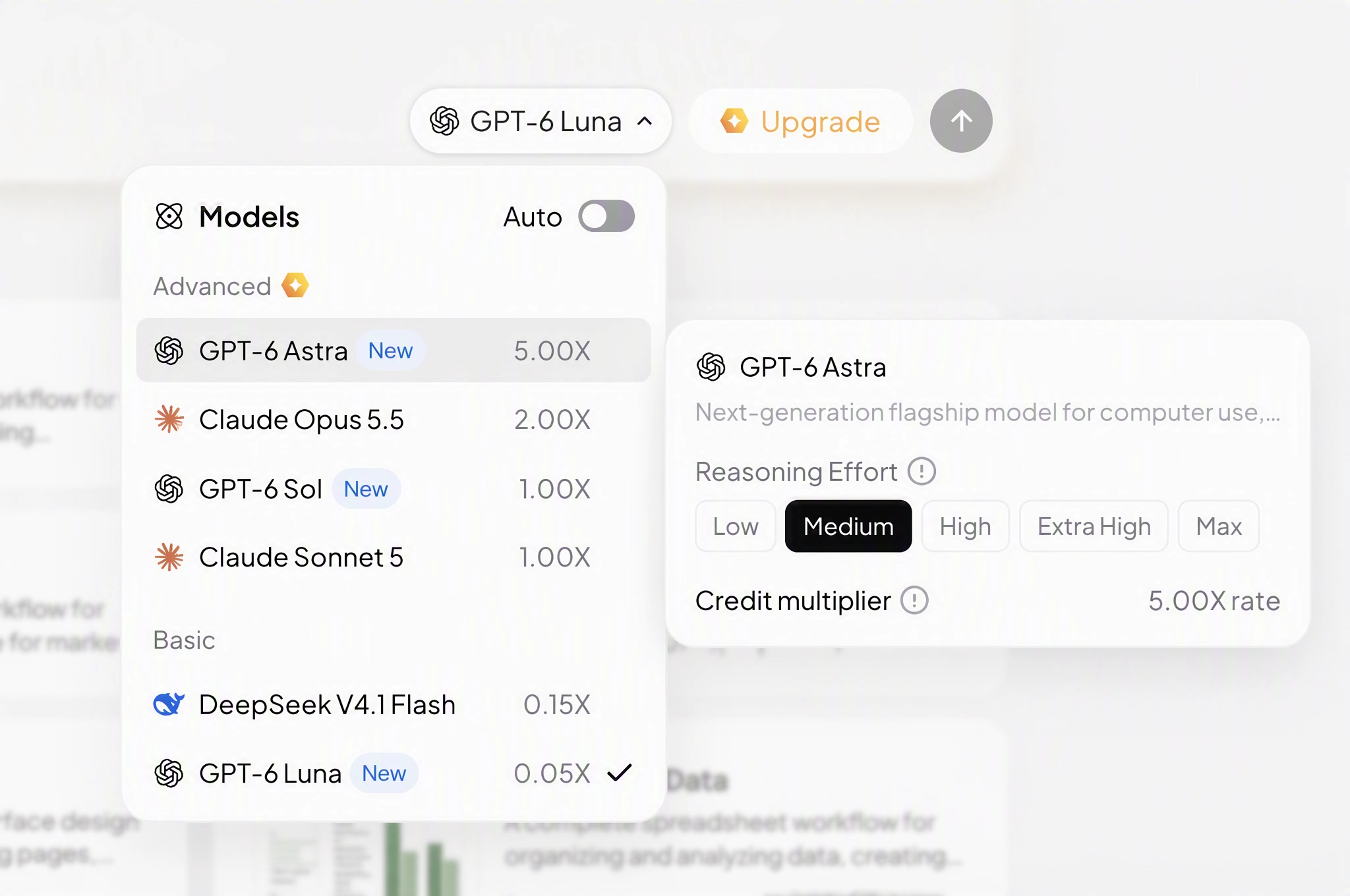
The menu groups models into Advanced and Basic. Hover over a model to read its description, check its credit multiplier, and adjust reasoning effort where that option is available. Advanced includes GPT-6 Astra, Claude Opus 5.5, GPT-6 Sol, and Claude Sonnet 5. Basic includes DeepSeek V4.1 Flash and GPT-6 Luna. Newly added models carry a New label for 14 days after launch, making them easy to spot.
Pick a model for recurring work, too
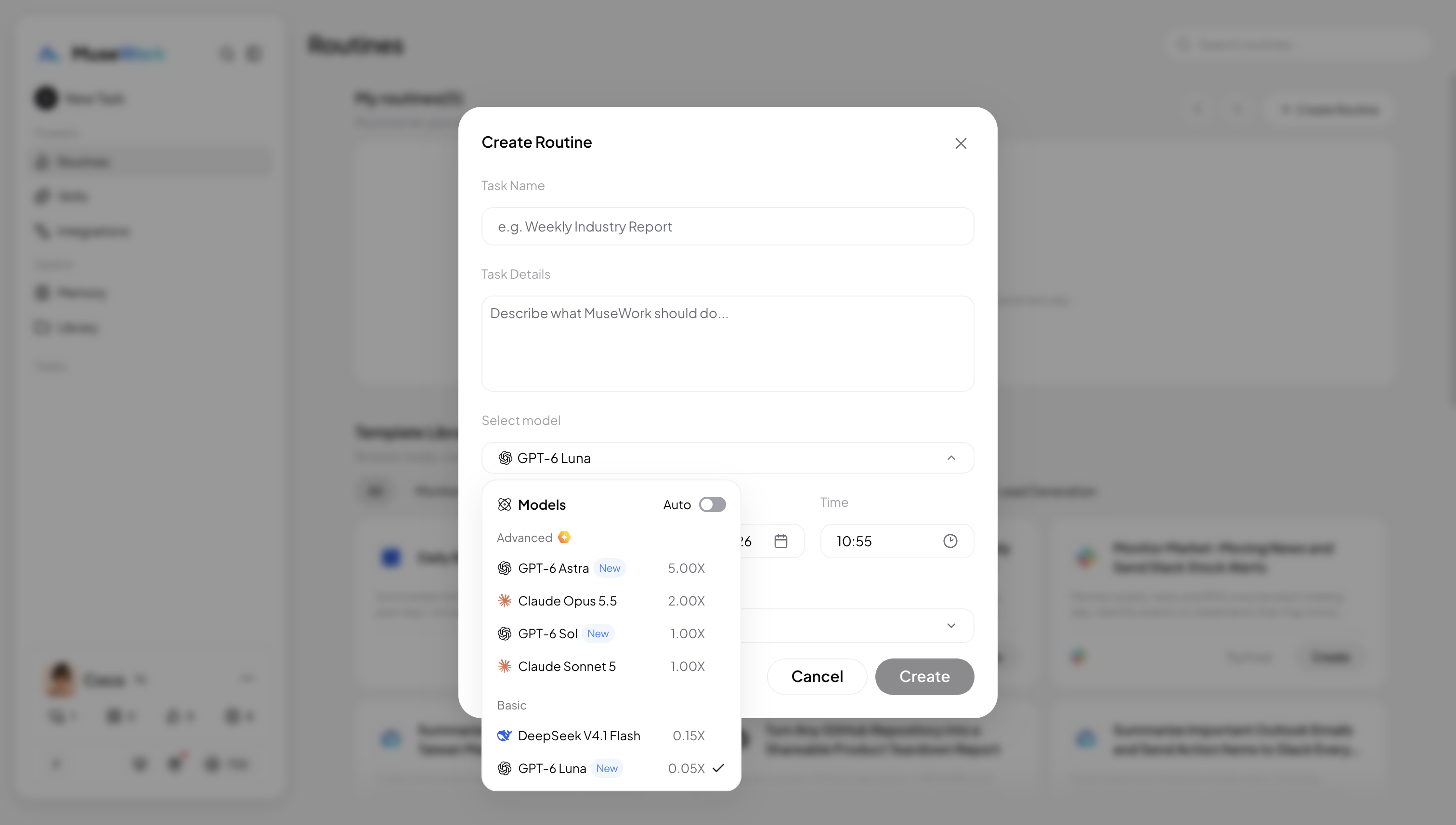
When creating a Routine in the interface, you can choose the model it will use. If you create a Routine through a chat, it uses the model selected for that chat session. That way, your recurring work can follow the model choice you made for the task.
Who can use which models?
Free users can use Basic models. Pro and Max subscribers can use all available models. New users can try Advanced models, including GPT-6 Astra, during the first 30 days from signup. If a model isn't included in your current access, MuseWork will let you know when you select it. Each model's credit multiplier appears in the picker so you can review usage before starting.