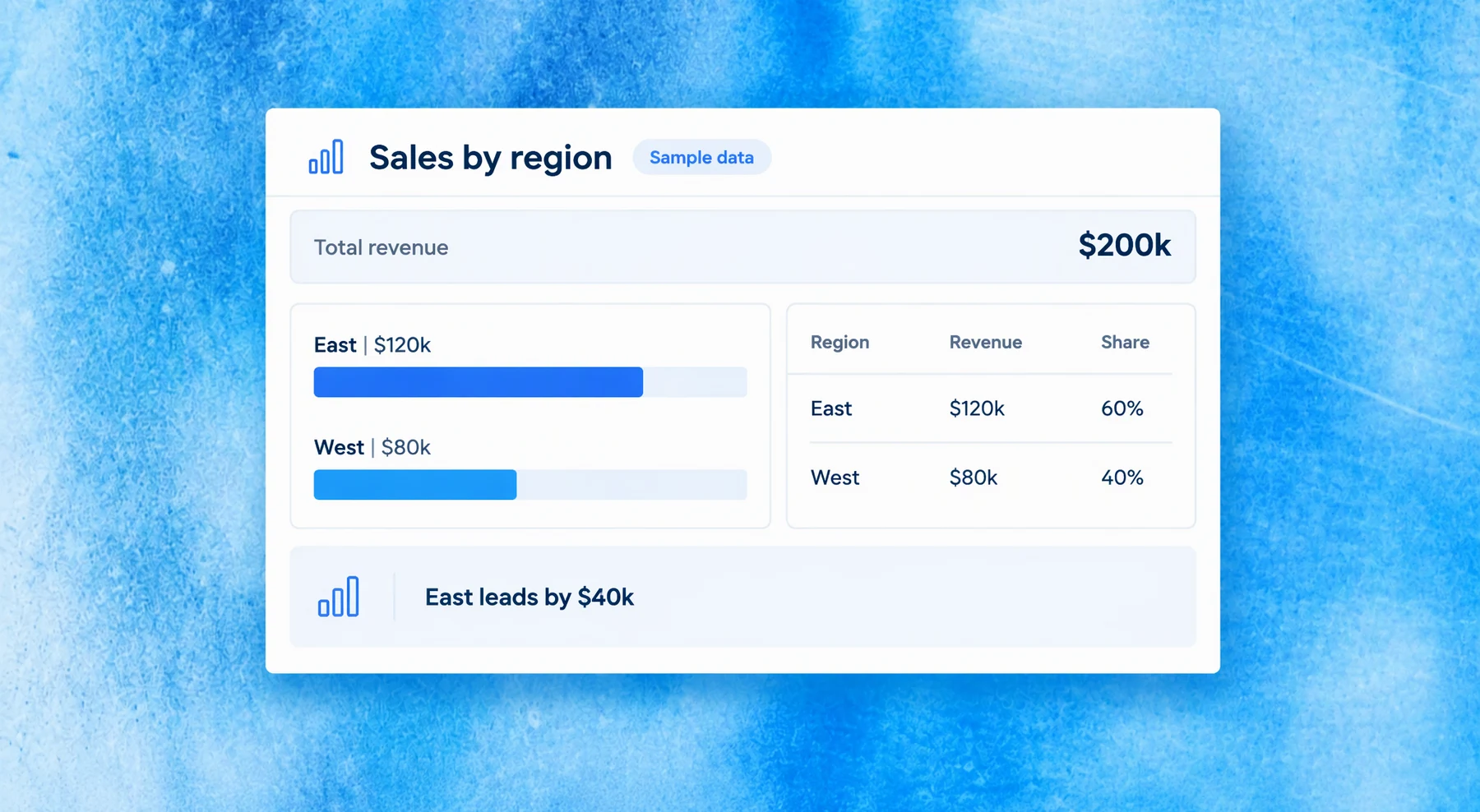
Bring an Excel or CSV file, or describe the spreadsheet you need. MuseWork helps you uncover trends, build spreadsheets, models and dashboards, and fix formulas, data and formatting—all through a conversation.
Analyze Data
Analyze Data · Select a template
One place for your spreadsheet work
Understand the numbers, start a new workbook, or get an existing one back into shape. Choose the task that matters to you, then keep refining it with your own data and context.
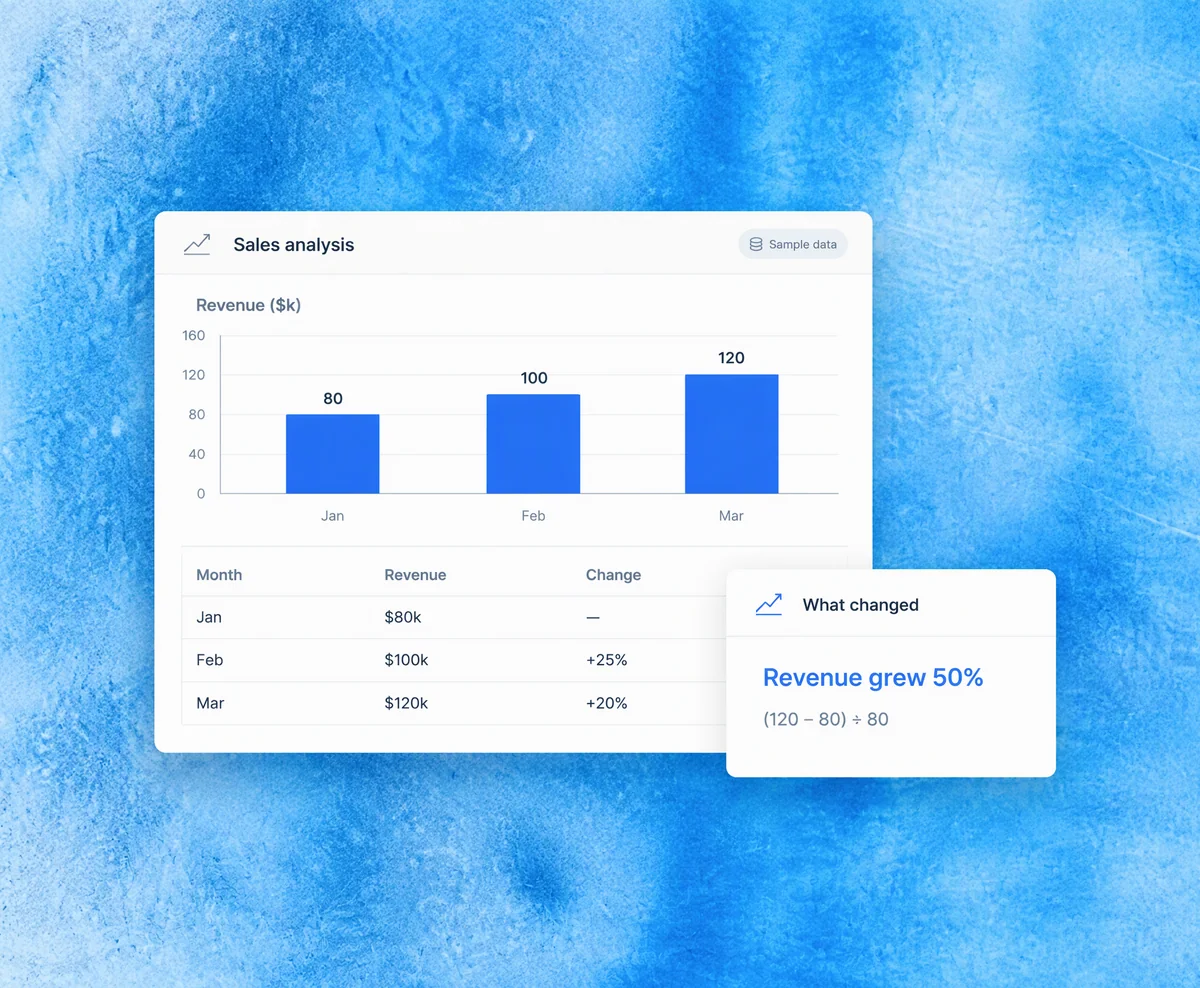
Analyze data and explain what changed
Upload Excel or CSV data and ask about the metrics, trends and anomalies that matter.
Compare periods or categories, create charts and bring the findings together in a clear summary.
See the calculations and assumptions behind the answer before using it in a report or decision.
You should not have to choose a different tool for every step. MuseWork brings analysis, creation and editing into one conversation, with your business question and requirements kept in view.
MuseWork
A manual spreadsheet workflow
Analyze metrics and changes
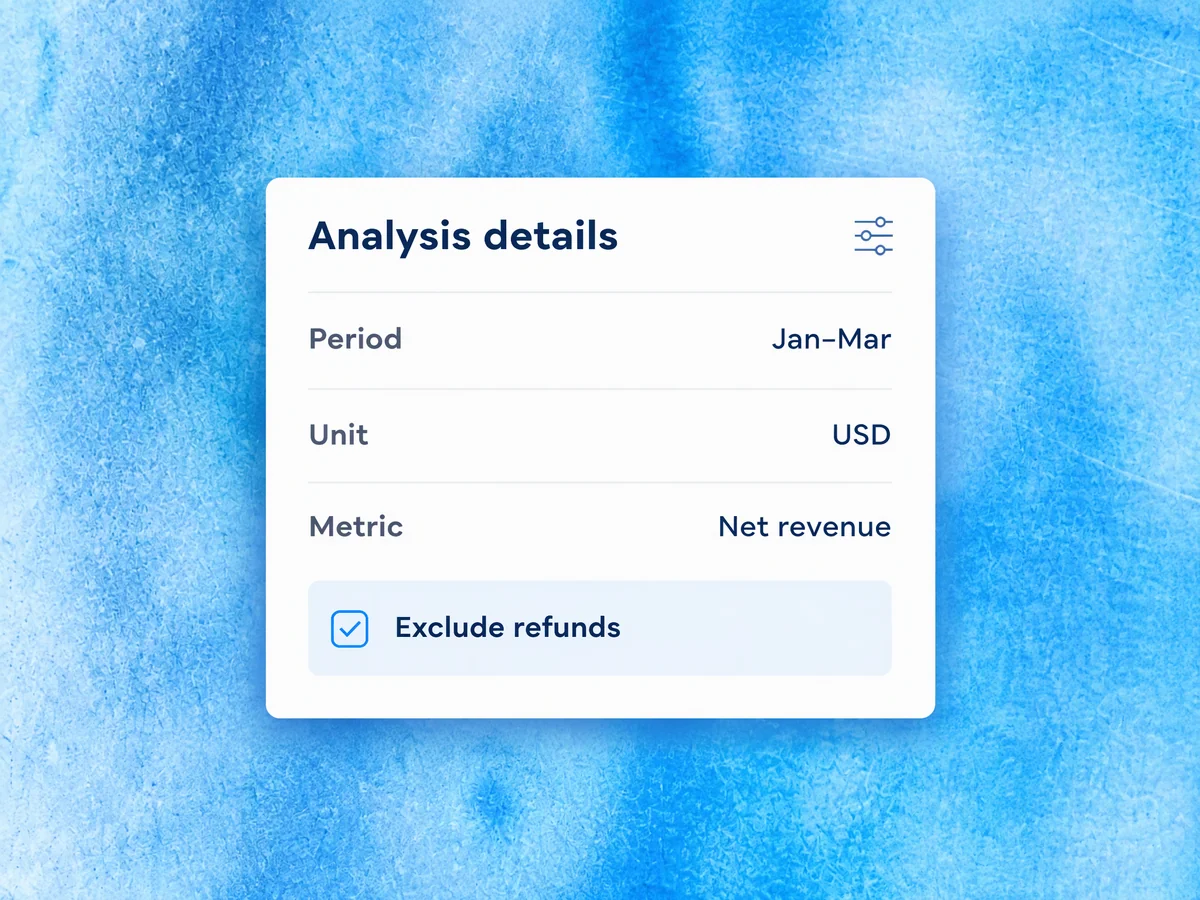
Describe the question, period and metric definitions. Ask for comparisons, trends and anomalies, with the calculations that support them.
Choose filters and aggregation rules, calculate period or category differences, then investigate unusual figures.
Create charts and explain findings
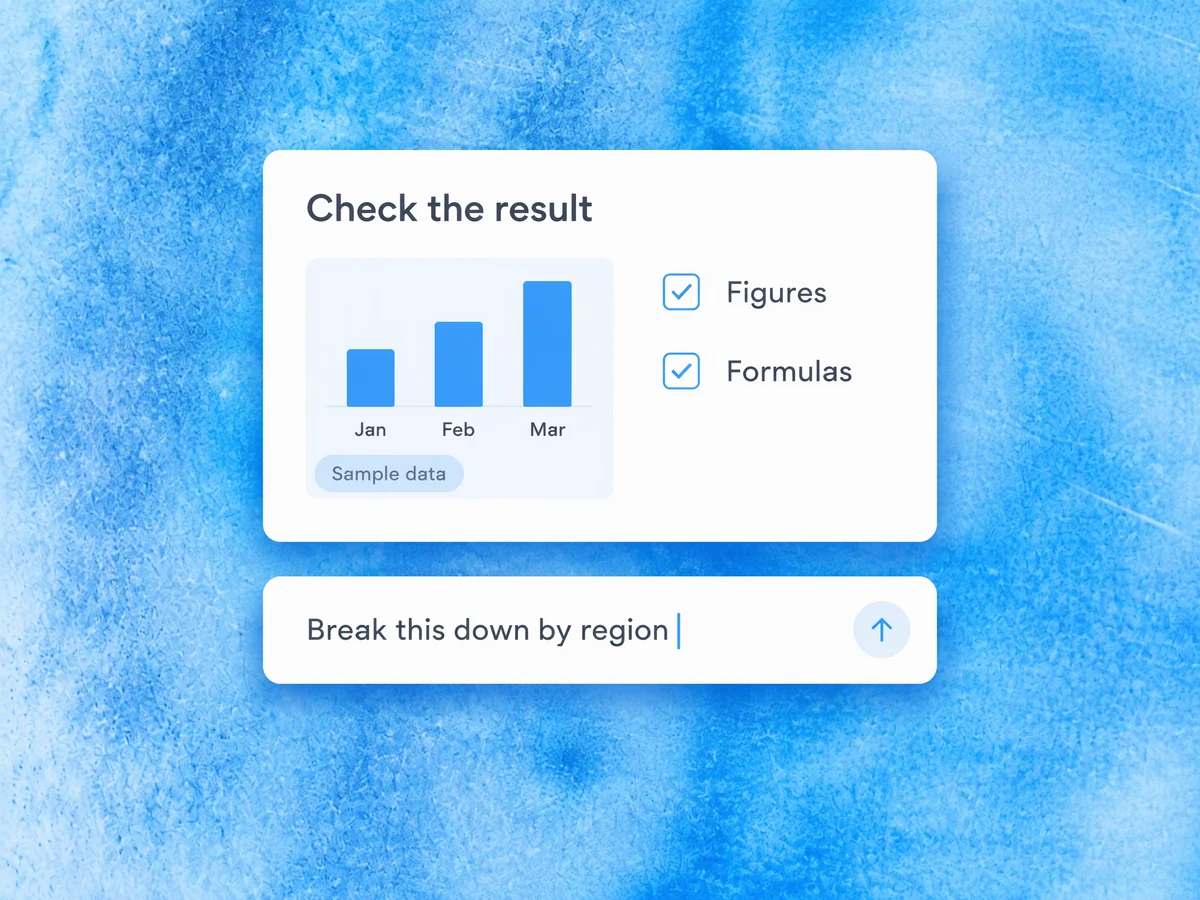
Explain what the chart should show and who will use it. Bring the visual, key findings and supporting figures together.
Select chart types, adjust labels and units, and write a separate summary for the audience.
Build a new spreadsheet
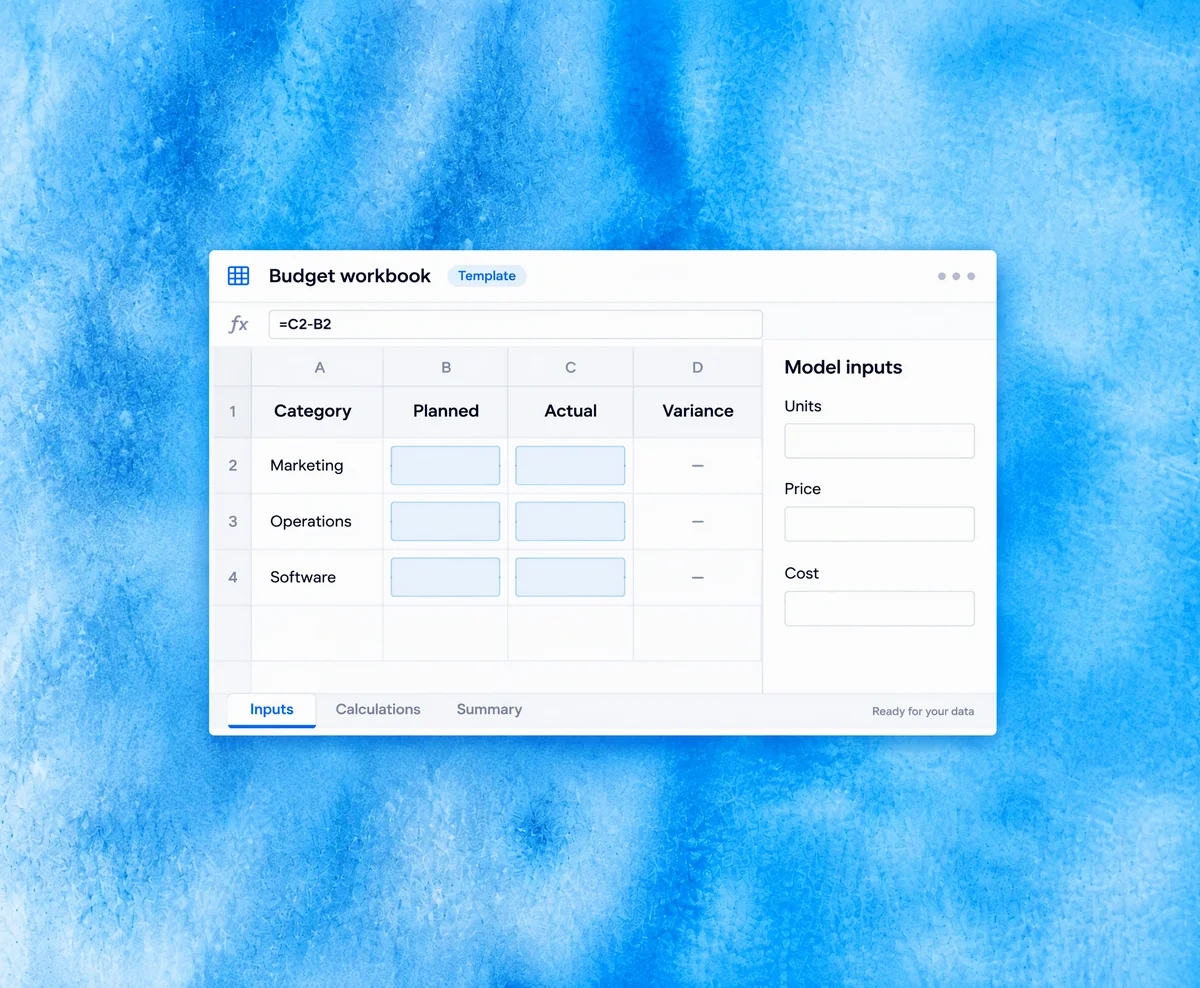
Describe the fields, calculations and purpose. Create a budget tracker or planning sheet, then refine the structure before adding real figures.
Start with a blank sheet, add columns and formulas, and set up the layout for entering data.
Create models and dashboards
Specify the inputs, assumptions and views you need. Build a model or dashboard and adjust its logic and presentation in conversation.
Arrange inputs and assumptions, connect calculations and charts, and assemble a summary view.
Find and fix formula errors
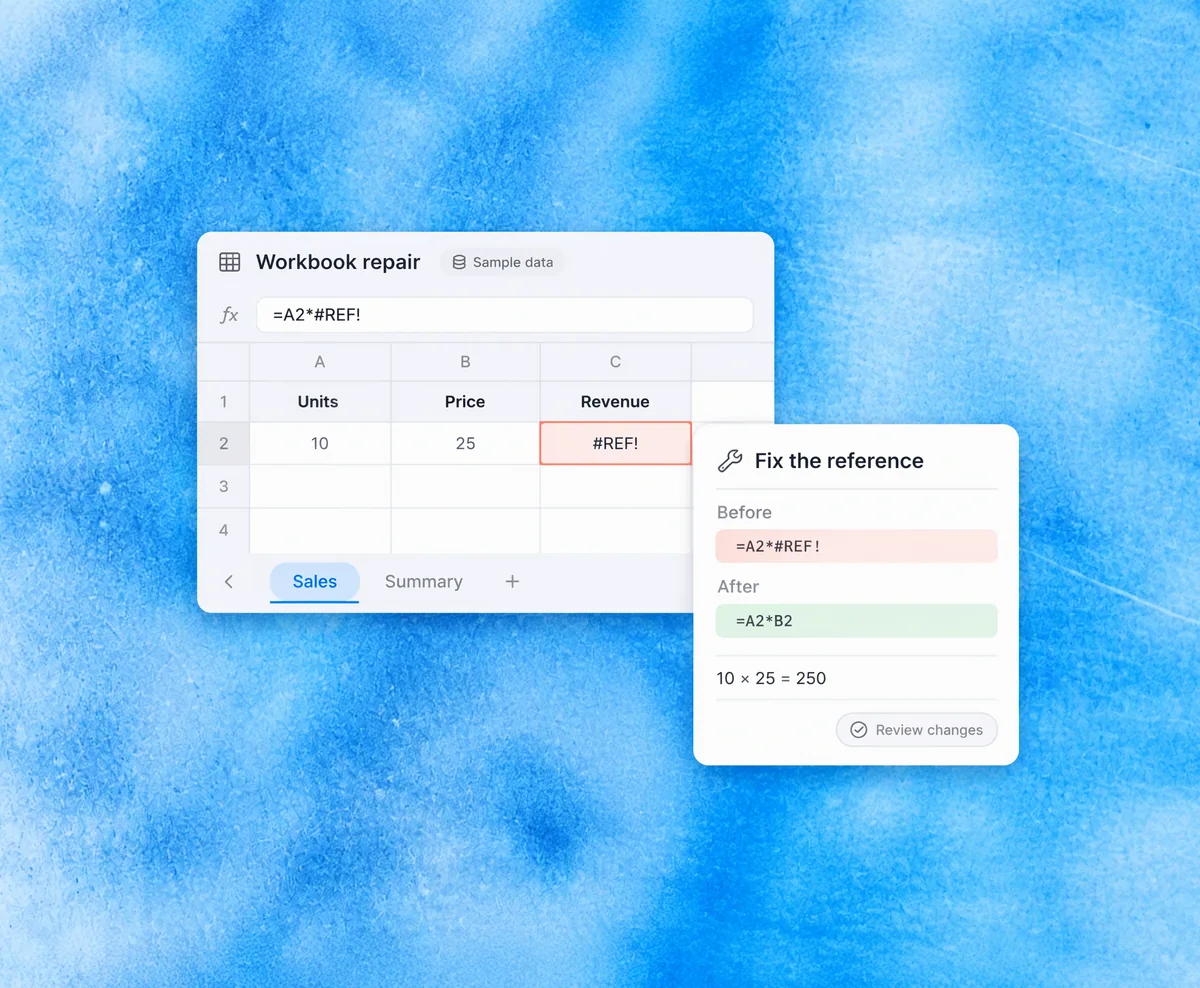
Provide the workbook and expected result. Ask for the error cause, corrected formulas and an explanation of the changes.
Trace references and calculation ranges, test changes, and work out why an error occurred.
Organize data and formatting
Describe the cleanup rules and formatting you want. Organize inconsistent values, flag uncertain entries and refine the existing workbook.
Check dates, currencies, duplicates and missing values, then standardize the report layout.
Review and refine the result
Ask for source columns, assumptions and change explanations. Continue with a new comparison or revision in the same conversation.
Keep calculation notes and change records separately, then redo the relevant steps when requirements change.
MuseWork supports three kinds of spreadsheet work: analyze existing data to identify metrics, trends and anomalies; create spreadsheets, models and dashboards from a description; and edit or fix existing workbooks, including formulas, data and formatting.
Add your file and describe the question you want answered. Include the time period, units and metric definitions, then ask for the comparisons, charts and explanation you need.
Yes. Describe its purpose, fields and calculations, such as a monthly budget tracker or sales planning model. You can start from requirements and refine the structure before adding your own figures.
Yes. Specify the inputs, assumptions, calculations and views you need. Ask for a model or dashboard built around that task, then review the logic and refine how the results are presented.
Yes. Provide the workbook and describe the errors or changes. MuseWork can help fix formulas, update data and improve formatting. Ask for an explanation of the changes and specify anything that should remain untouched.
You can begin in plain language. Explain the result you want and any business rules, then ask MuseWork to show the formulas, calculations and assumptions so you can review them.
Review the source data, calculation ranges, units and assumptions. For edits, ask which cells or rules changed and why. Compare important results with known figures before relying on them.
You can start with a free MuseWork account and a first analysis, creation or editing task. Available usage depends on your plan and Credits.


 Try it now