'/%3e%3cdefs%3e%3clinearGradient%20id='paint0_linear_6609_68599'%20x1='3.18225'%20y1='15.6908'%20x2='32.433'%20y2='20.6207'%20gradientUnits='userSpaceOnUse'%3e%3cstop%20stop-color='%230048ED'/%3e%3cstop%20offset='1'%20stop-color='%230DECD7'/%3e%3c/linearGradient%3e%3c/defs%3e%3c/svg%3e)
'/%3e%3cdefs%3e%3clinearGradient%20id='paint0_linear_6609_68609'%20x1='3.18219'%20y1='15.6908'%20x2='32.4329'%20y2='20.6207'%20gradientUnits='userSpaceOnUse'%3e%3cstop%20stop-color='%236896FF'/%3e%3cstop%20offset='1'%20stop-color='%230DECD7'/%3e%3c/linearGradient%3e%3c/defs%3e%3c/svg%3e)


How to Customize Essay Writer?
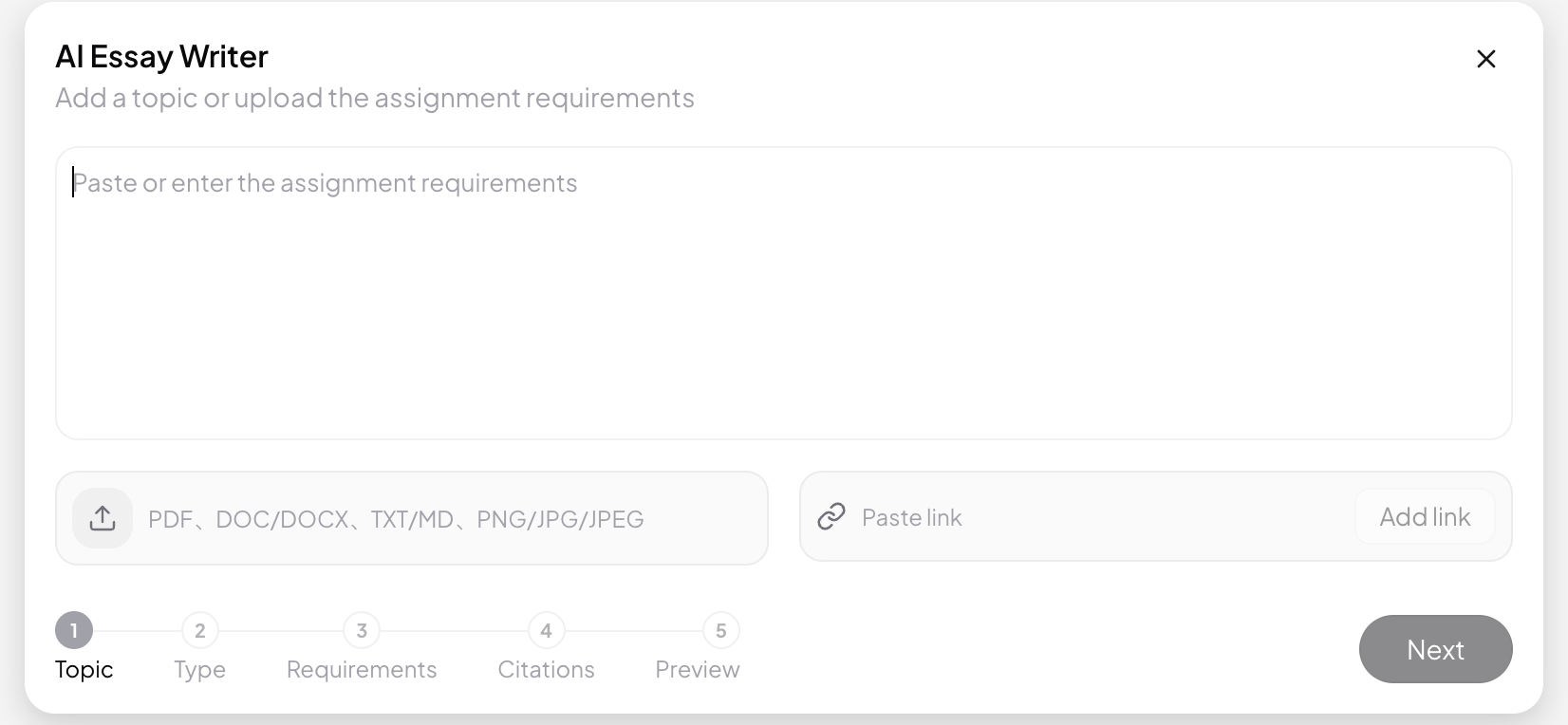
Essay Writer is primarily customized through its five-step setup. Before generation, you can return to any completed step and change its settings. After generation, you can reopen the setup or add revision instructions.
How Do You Make Changes Before Generation?

During the five-step setup, you can go back in either of the following ways:
- Click Back at the bottom to return to the previous step;
- Click a completed step in the progress bar to return directly to its settings.
You cannot open a later step before completing the steps that precede it. After making changes, click Continue through the remaining steps to return to the review screen.
What Can You Customize?
Change the Topic and Supporting Materials
Return to Step 1 to:
- Revise the paper topic or assignment instructions;
- Add new files or links;
- Remove materials you no longer need.
If your instructor provides a new grading rubric, formatting template, or clarification, upload the original file here rather than reducing it to a short summary in the topic field.
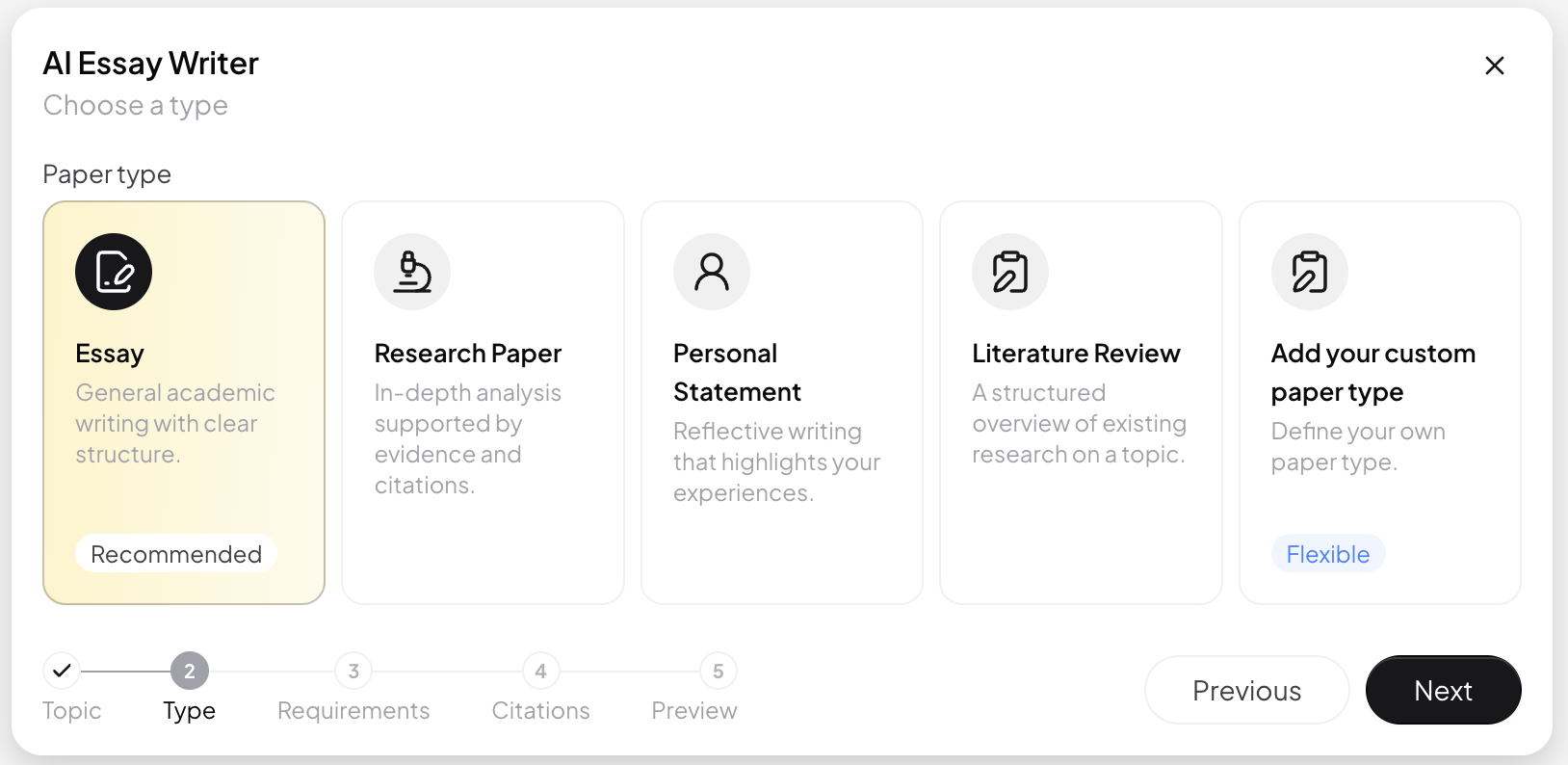
Set a Custom Paper Type
Step 2 includes several common paper types. If none of them fits your assignment, select Custom Paper Type and enter a specific format, such as:
- Case study;
- Lab report;
- Policy analysis;
- Course research report.
Use a descriptive name for the task rather than entering only “Other.”
Customize the Writing Requirements
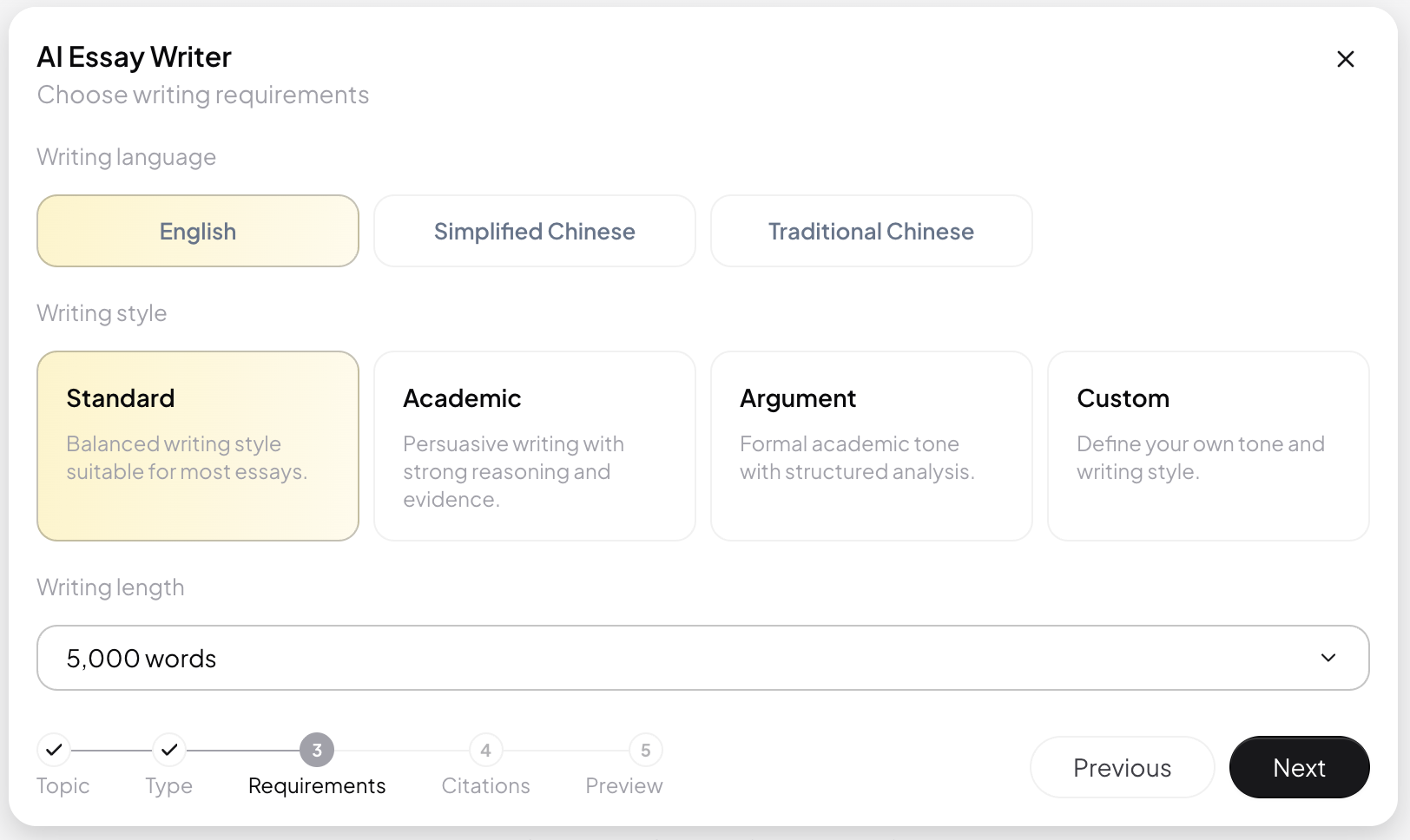
In Step 3, you can adjust:
- Writing Language: Choose Simplified Chinese, Traditional Chinese, or English, or use Auto-detect;
- Writing Style: Choose Standard, Academic, Argumentative, or Custom;
- Target Word Count: Select one of the available lengths based on the instructor’s requirements.
If you select Custom Writing Style, provide actionable instructions. For example:
Use a formal, restrained academic style. Keep the background concise, focus on comparing conflicting findings, and summarize the central debate at the end of each section.
Customize Citations and the Source Range
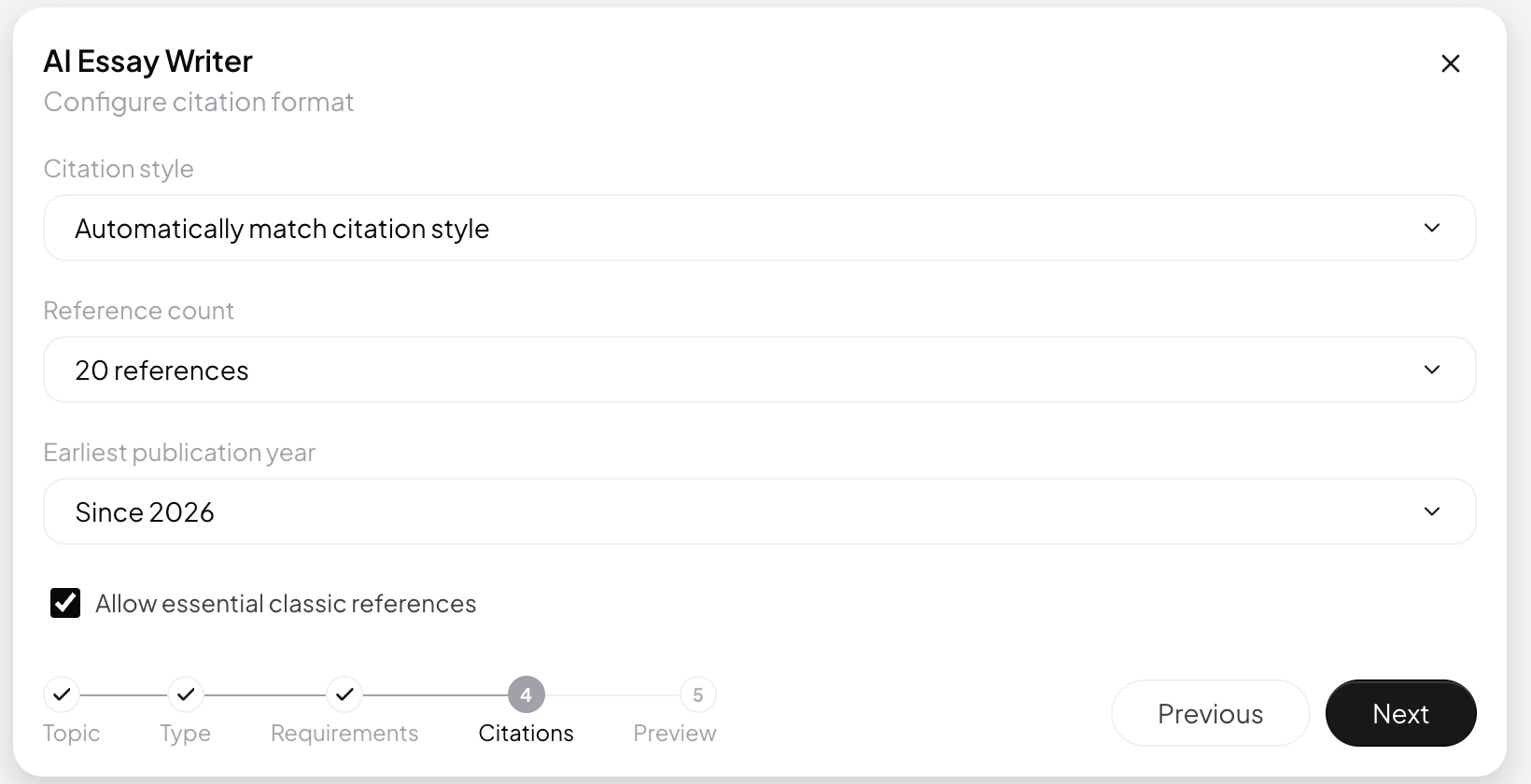
In Step 4, you can change:
- The citation style;
- The number of references;
- The earliest publication year;
- Whether essential classic sources are allowed.
For the number of references, choose a preset value or enter a custom number or range, such as 18 or 15–30. If the uploaded assignment file already states the citation rules, select Match Assignment Requirements Automatically. If the instructor explicitly names a style, select that option manually.
Customize Visual Content and Final File Formats
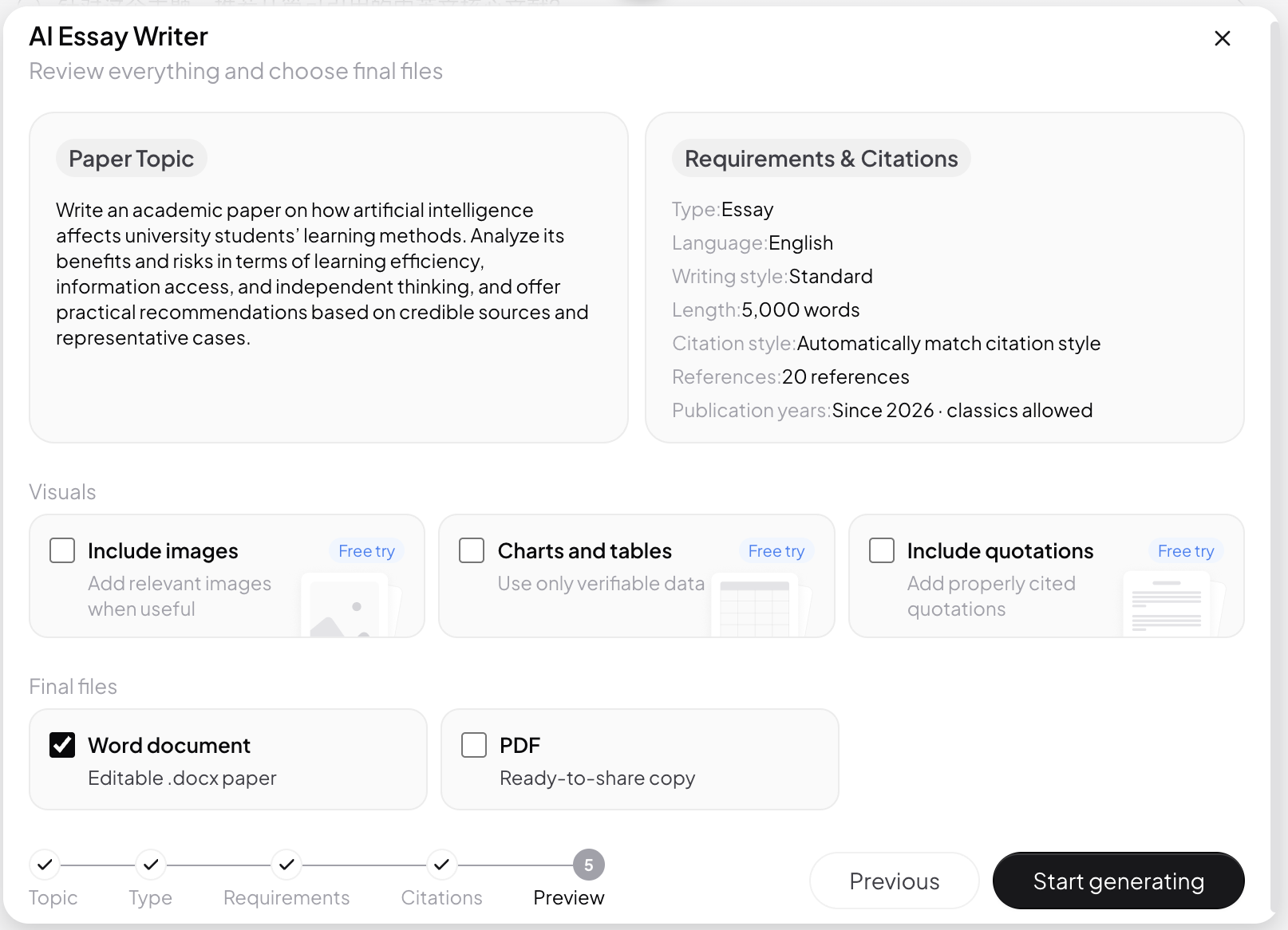
In Step 5, choose whether to include:
- Images;
- Charts and tables;
- Quotations.
These items are not added by default. Only the options you select will become part of the generation requirements.
You can also choose Word, PDF, or both as the final output. At least one format must remain selected.
How Do You Make Changes After Generation?
Once the paper has been generated, use one of the following options:
- Edit: Reopen the five-step setup to change the paper type, language, word count, citations, or output options;
- Add Requirements: Provide specific revision instructions in the current conversation—for example, “Shorten Section 2,” “Change the citation style to APA 7,” or “Add a limitations section”;
- View Requirements: Review the paper type, word count, and citation style used for the current version before deciding what to change.
If a revision affects the entire paper—such as changing the paper type, target language, research scope, or citation style—use Edit and review all five steps. For changes to a single paragraph, heading, or wording choice, Add Requirements is usually more efficient.
When Should You Start Over?
If the new task is unrelated to the current paper, select Start Over to clear the existing settings and create a new Essay Writer task.
If you are only revising the current paper, there is usually no need to start over. Returning to the relevant step or using the post-generation editing options will preserve your existing settings and reduce duplicate work.