

How can I view, download, and use task results?
When a task is complete, review the result before downloading files or requesting another revision.
How can you review task results?
Open the current task or Library to view text, files, and other deliverables. Check:
- Whether the original goal was completed.
- Whether the structure and content are complete.
- Whether data, citations, and sources need further verification.
- Whether the language, length, and format meet the requirements.
- Whether anything remains incomplete or awaiting confirmation.
Review each deliverable when a task contains multiple outputs.
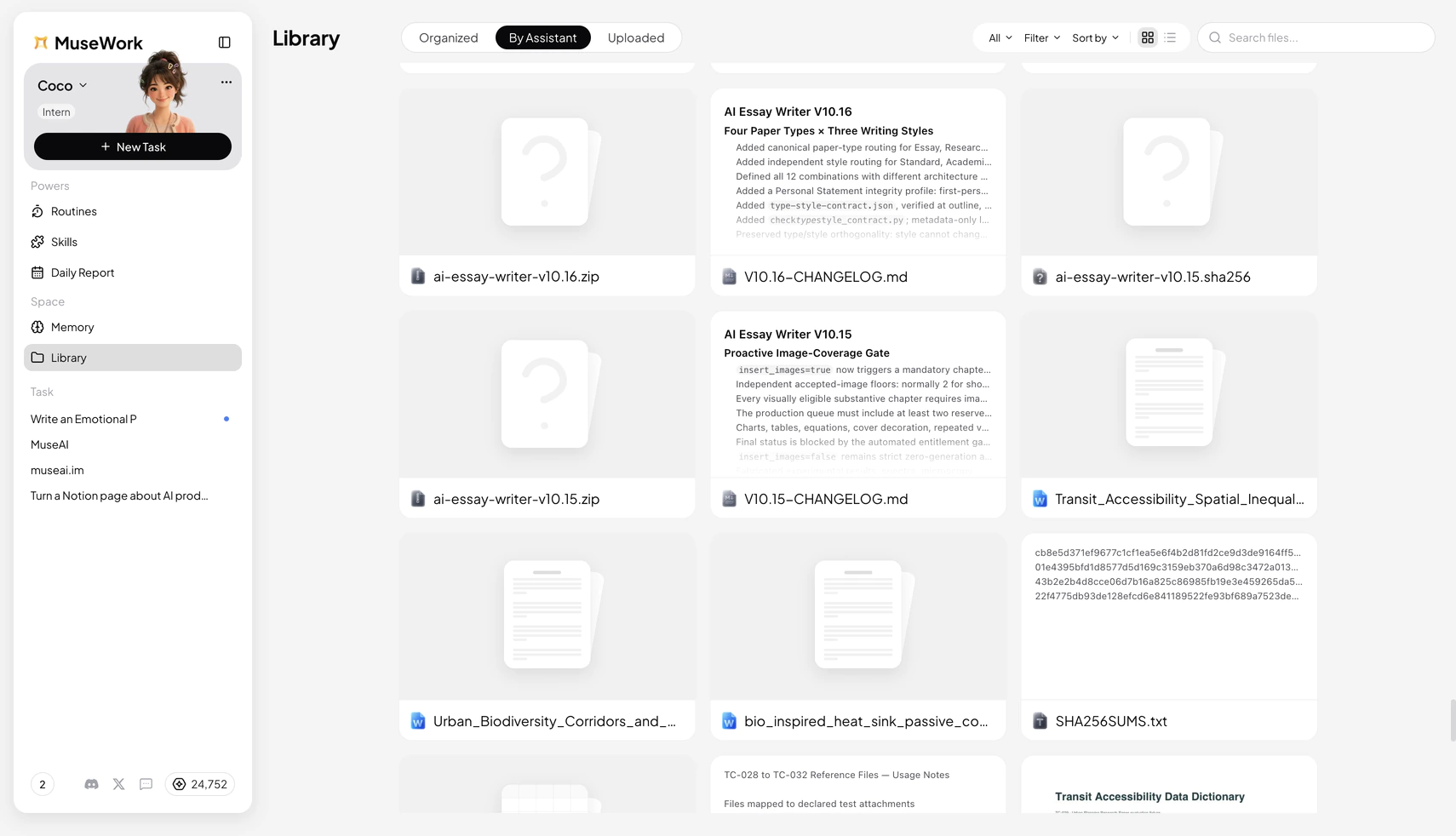
How can you download files?
Use the download action next to a downloadable result. After downloading, open the file and confirm that it works, layouts and media render correctly, the content matches the final task result, and the format is suitable for editing or submission.
The exact action label can vary by deliverable type. Follow the label shown in the interface.
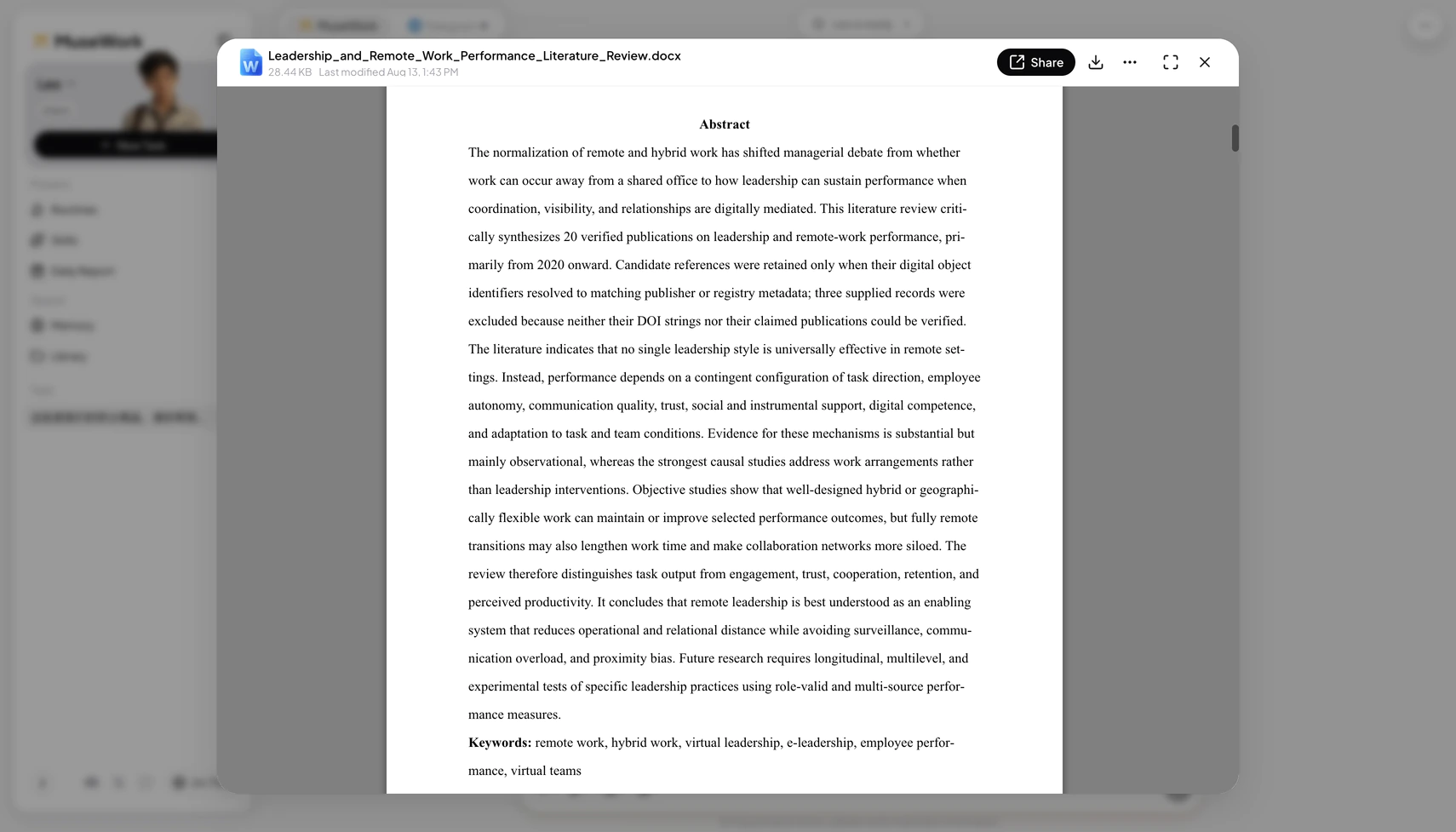
What if you notice a problem before downloading?
Request the correction in the current task first.
Fix the chart title on page 3 and add complete sources for the two figures in the conclusion before I download it.
Can you request another format?
Explain the intended use and ask for an available format.
My colleagues need to continue editing this, so please provide an editable version.
Availability depends on the task capabilities and the options shown in the interface.
Can you revise a result after downloading it?
Yes. Return to the original task, identify the version you are using, and describe the changes to make.